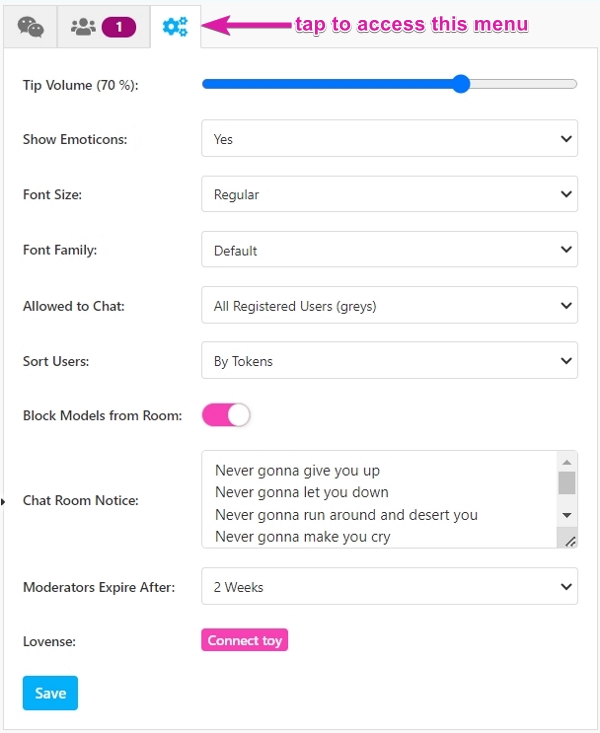
Access your in-room settings anytime, whether broadcasting or not, by clicking the gear icon.
Settings include:
- Tip Volume: Adjust the volume for tip notifications (default at 70%).
- Show Emoticons: Enable or disable emoticons in chat.
- Font Size: Alter chat window font size (changes visible only to you).
- Font Family: Change your chat font type (visible only to you).
- Allowed to Chat: Restrict chat participation to specific users, identified by username color. Options include all registered users (grays), token-holders (blues), users who tipped today (dark blues), and past tippers (dark blues).
- Sort Users: Organize room guest list by tokens or alphabetically.
- Block Models from Room: Toggle to prevent other models from entering your room.
- Chat Room Notice: Set a notice in red text for your chat room - useful for rules, contests, or welcome messages.
- Moderators Expire After: Assign moderator roles for a set duration. Moderators assist in room management. For more details, see here.
- Lovense: When your Lovense add-on is active, you can tap to connect your toys for interactive features. For setup information, see this article.
Remember to save changes using the Save button at the bottom!